When the administrative database is signed, metadata such as the administrative data of users, groups and rights are protected against unauthorized access from the outside (e.g., via external SQL tools). If a user’s group membership is manipulated and changed through an external SQL command, for example, the PROXESS system detects this manipulation and blocks the relevant user account. Database signing thus makes unauthorized access and manipulations of the administrative data visible.
The initialization of the database signing is a prerequisite for operating PROXESS. It also has to be initialized if you don’t want to select additional encryption options, i.e., to choose system operation without security functions. If the database signing hasn’t been initialized yet, no users can log on to the system or connect to a database.
You need supervisor privileges for the functions “Initialize database signing”, “Restore database signing” and “Initialize and sign metadata” described below.
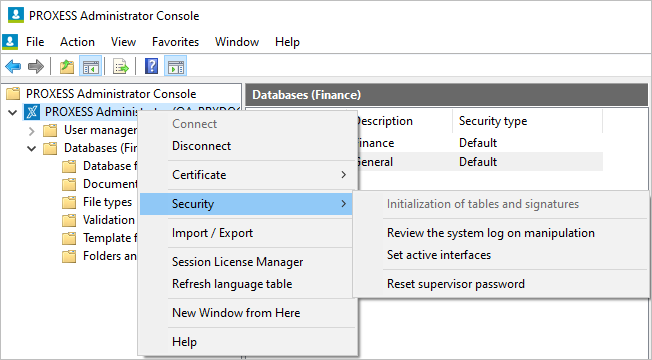
Fig.: “Action/security” menu
Select a printer to print out “PROXESS master key—database signing key”. For security reasons, select a local printer or a printer not accessible to the public. (Don’t select a PDF printer or similar, since there is a risk that your password file will be overwritten accidentally.)
Confirm your selection with the Initialize command.
Your changes will only take effect after you restart the PROXESS system.
Warning information
|
|
Store the resulting printout “PROXESS master key—database signing” in a safe place. This printout has a key password that is required for the potential recovery of the database signing, e.g., after a hardware replacement. Without this password, the user will be unable to autonomously restore the system operation. In that case, the database signing must be re-initialized by PROXESS GmbH for a fee. |
Restoring the database signing is required e.g., after replacing system hardware.
As supervisor, use the smartcard to connect with the registered “PROXESS Administrator”.
In the “Actions/security” menu, select the command Restore database signing.
Enter the password of the printout “PROXESS master key—database signing key”.
Confirm your entry with the command Restore.
Your changes will only take effect after you restart the PROXESS system.
This function is only required when you update from PROXESS 5.0 to PROXESS 5+. This command adds new database fields from the administration database to the database signing. You do not need to execute this command if you are installing PROXESS 5+ for the first time.
Also see:
